
How to Add Integration (Google Adsense) Using Web Dashboard
- Sign In to your Google Adsense account or Signup if you don't have an Adsense account.
- Inside Google Adsense Dashboard go to Ads, Click on Overview> Edit
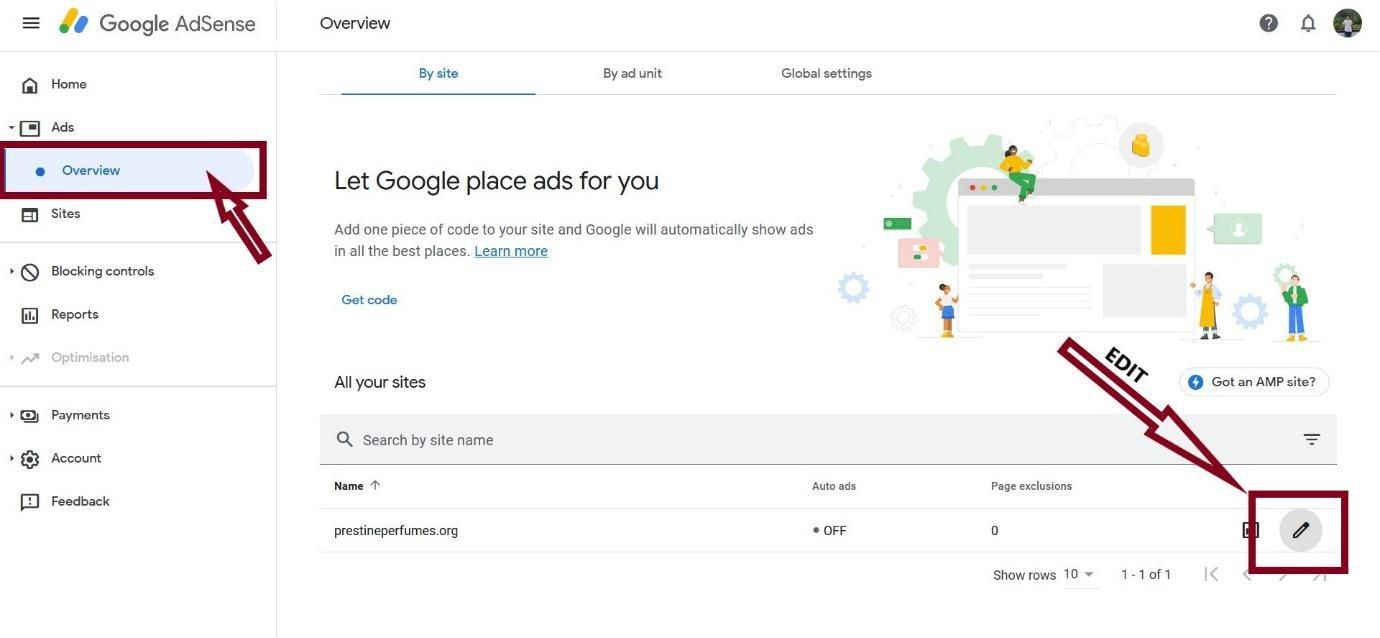
- Now enable the Auto ads button and click on Apply to site.

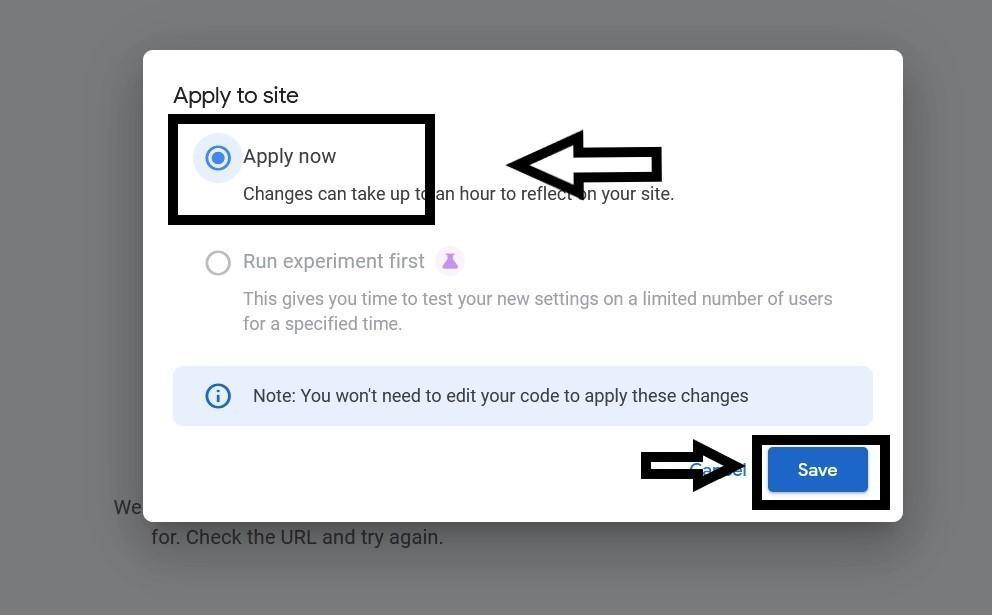
- Select the option to apply now and click on save.
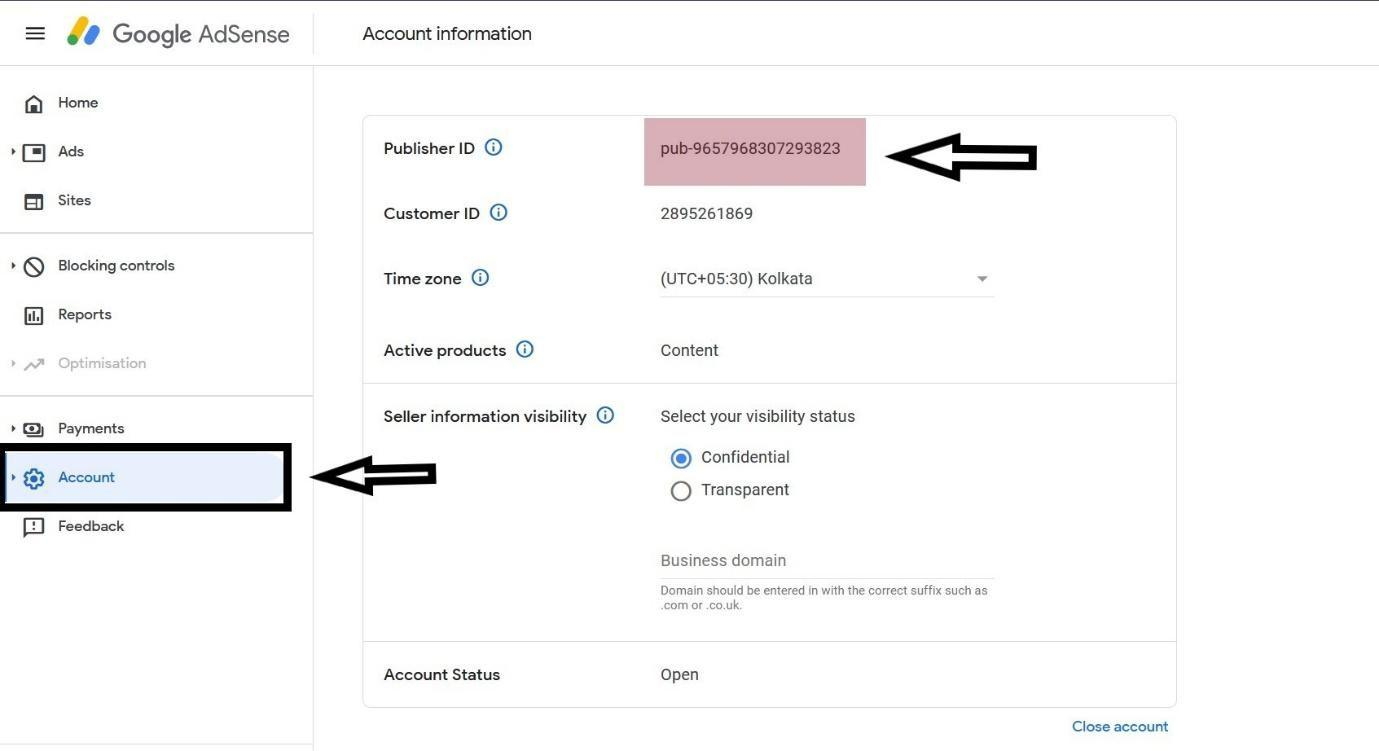
- Now from the dashboard click on the Account button and copy the Publisher ID code.
- Now paste the code into your website by visiting Integration section > Google Adsense and click on Save Google Adsense.
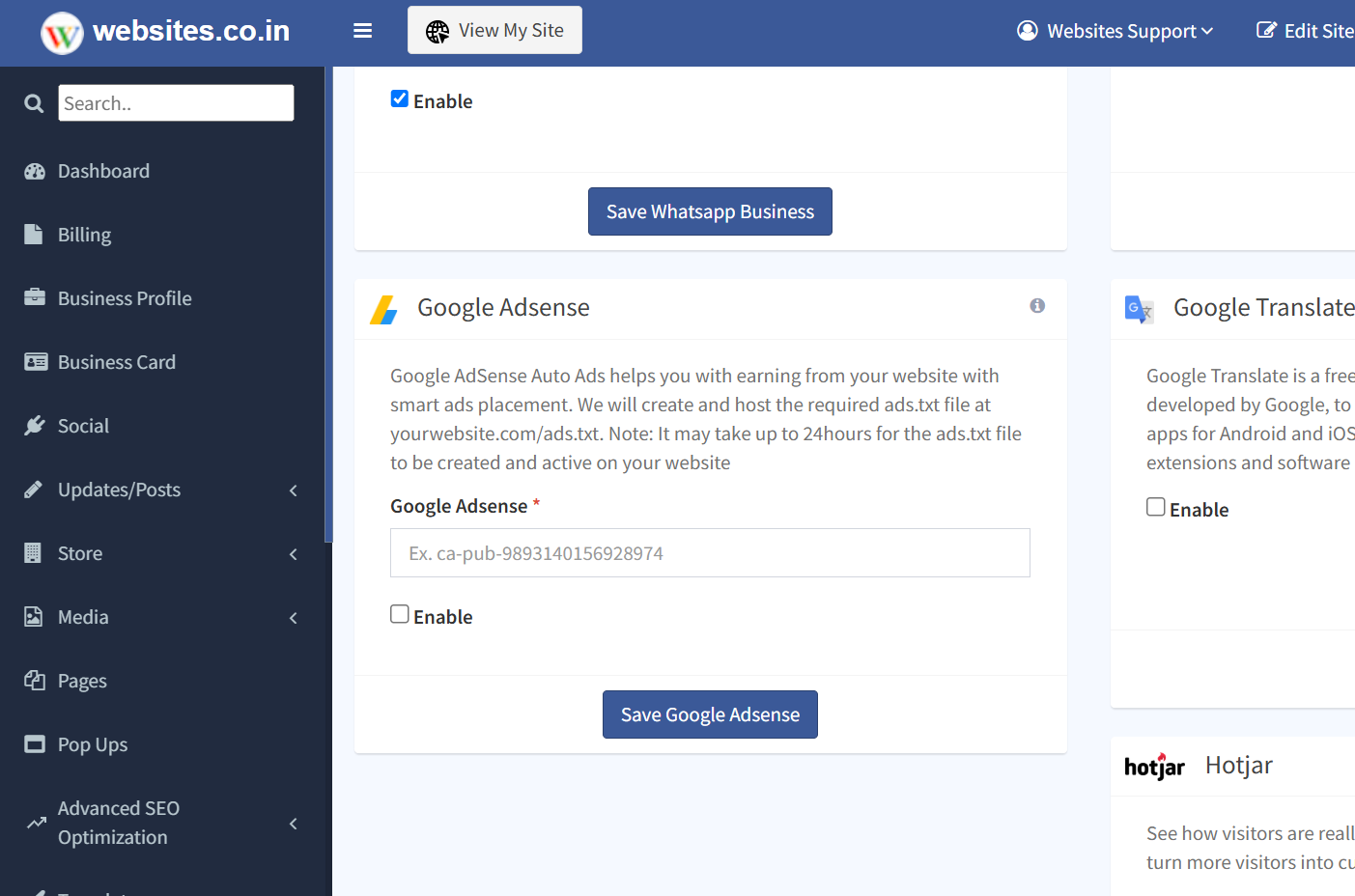
We will create and host the required ads.txt file at yourwebsite.com/ads.txt.
Note: It may take up to 24 hours for the ads.txt file to be created and active on your website.
How to Add Integration ( Google Adsense) Using Websites.co.in App
- Sign In to your Google Adsense account or Signup if you don't have an AdSense account.
- Inside Google AdSense Dashboard go to Ads, Click on Overview > Edit
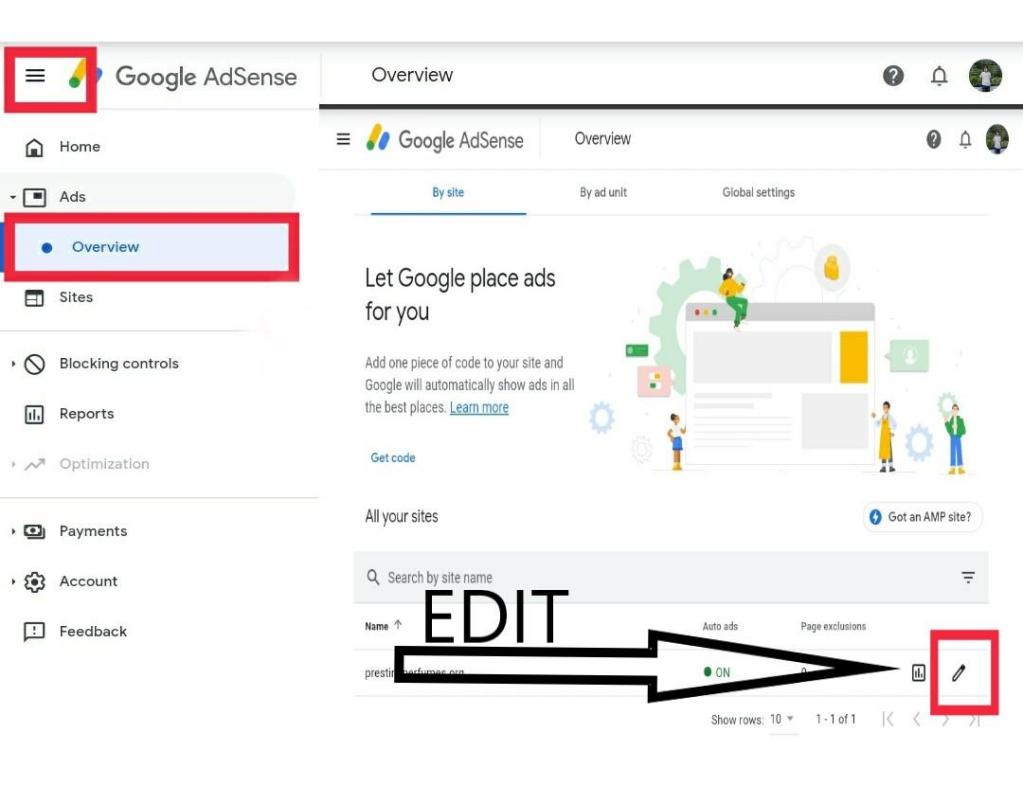
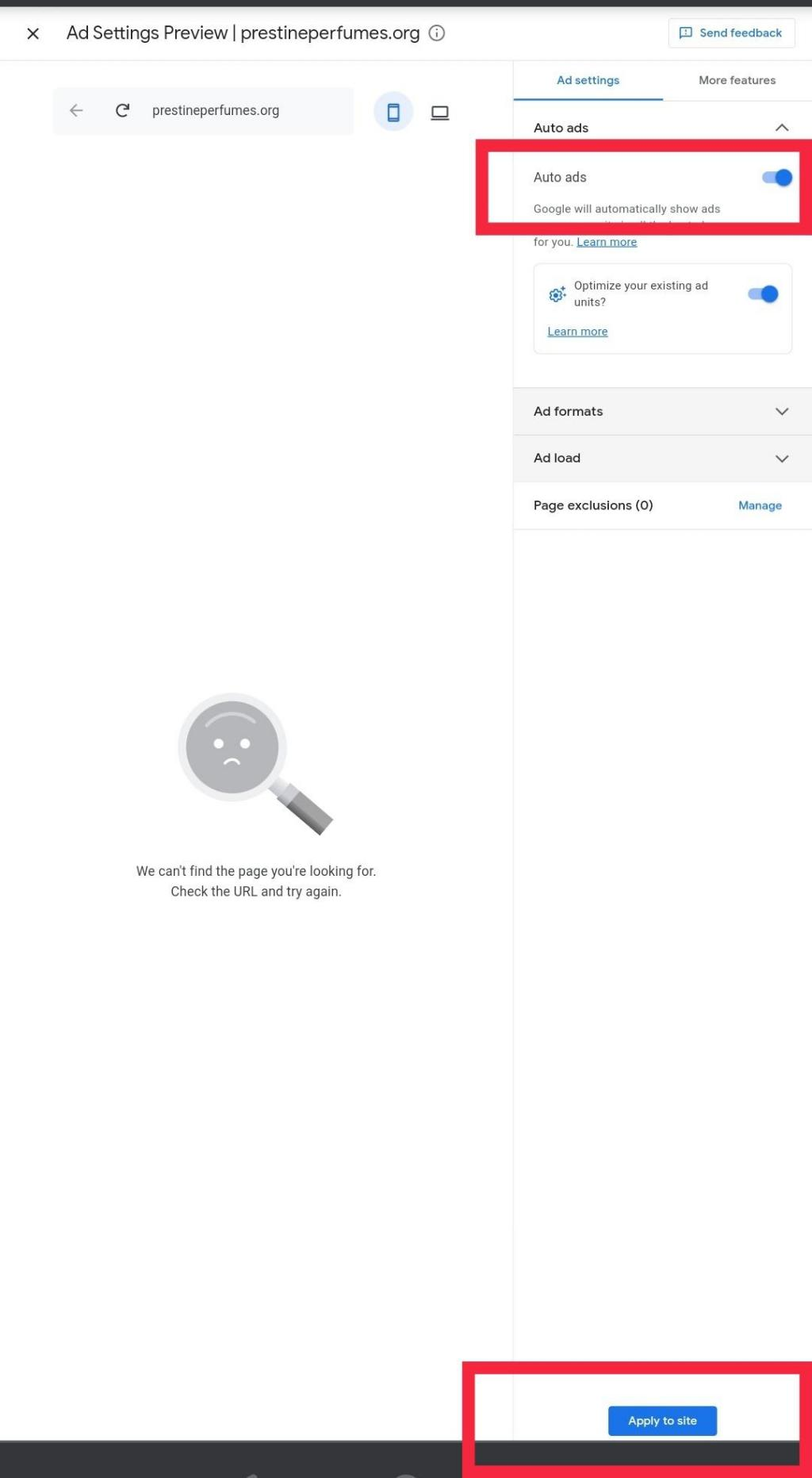
- Now enable the Auto ads button and tap on Apply to site.
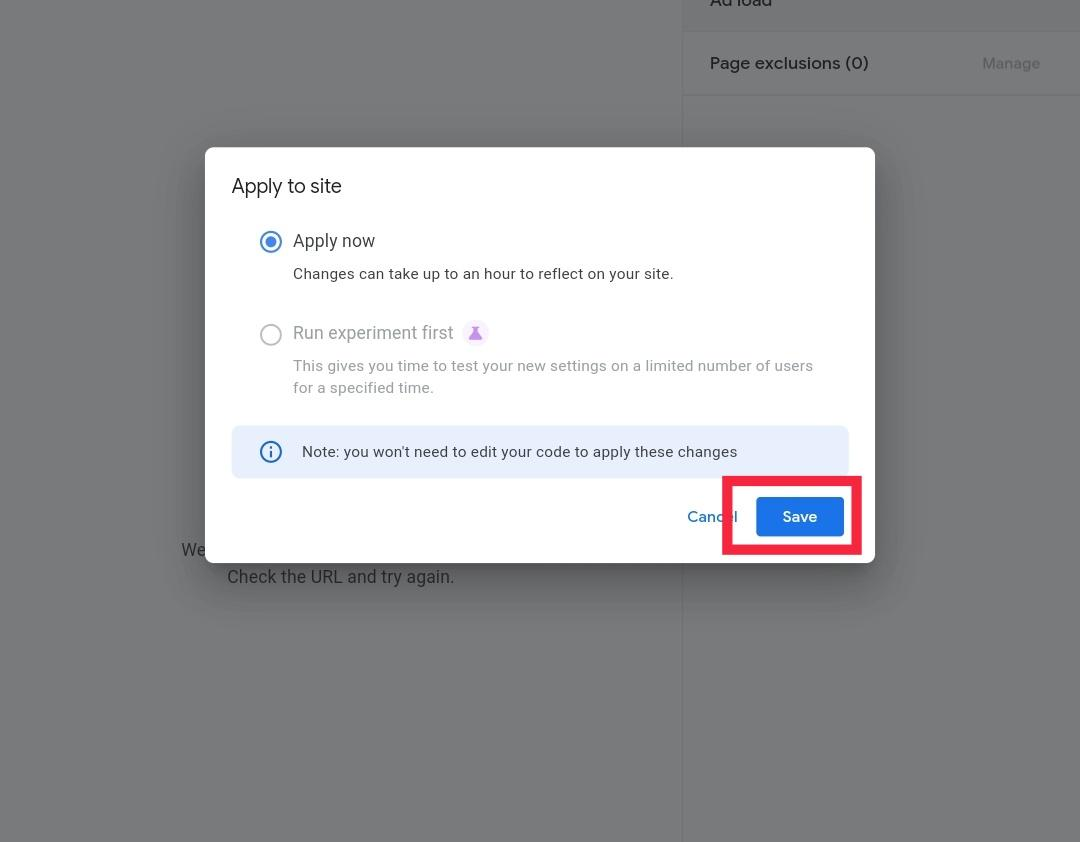
- Now select the option to apply now and tap on save.
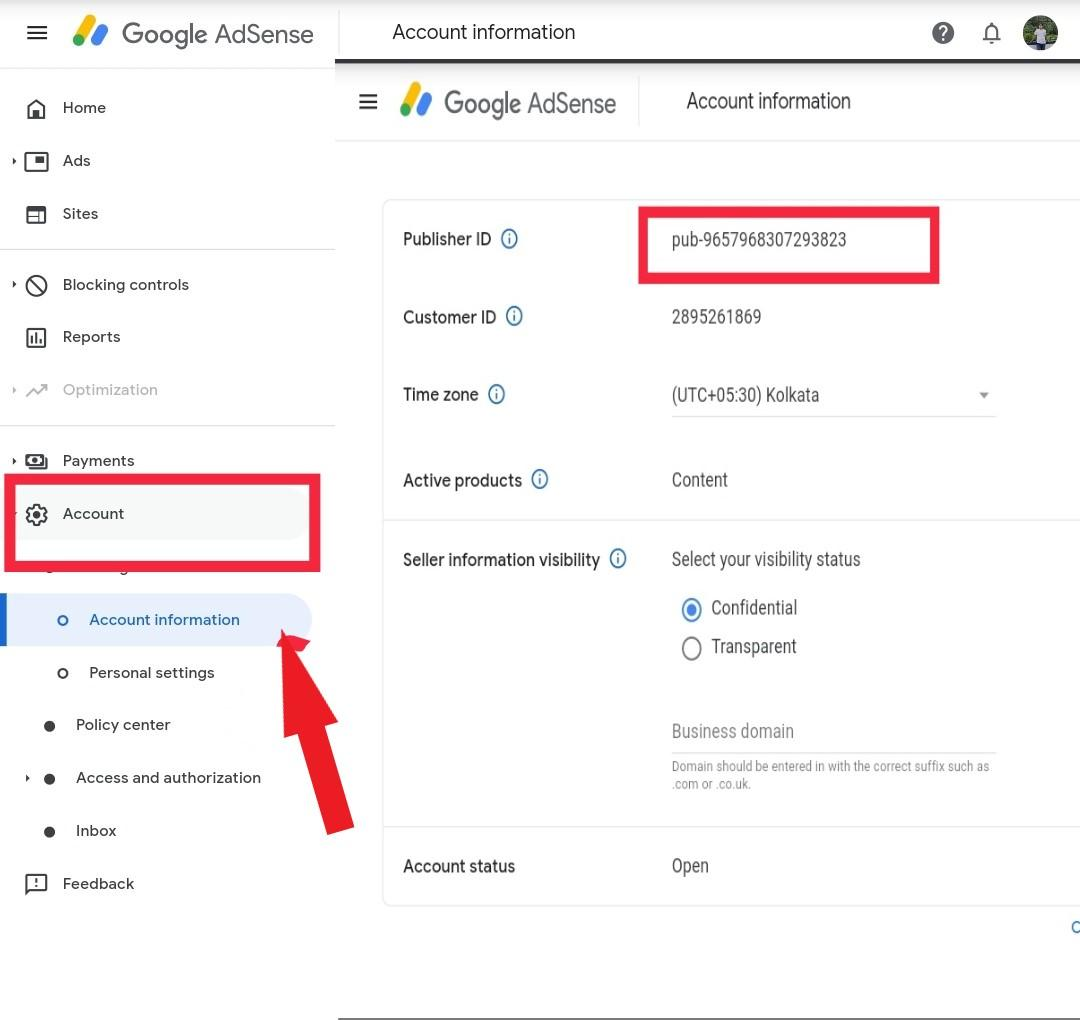
- Now from the dashboard tap on the Account button and copy the Publisher ID code.
- Now paste the code into your website by visiting Integration section > Google Adsense and tapping on Save Google Adsense.
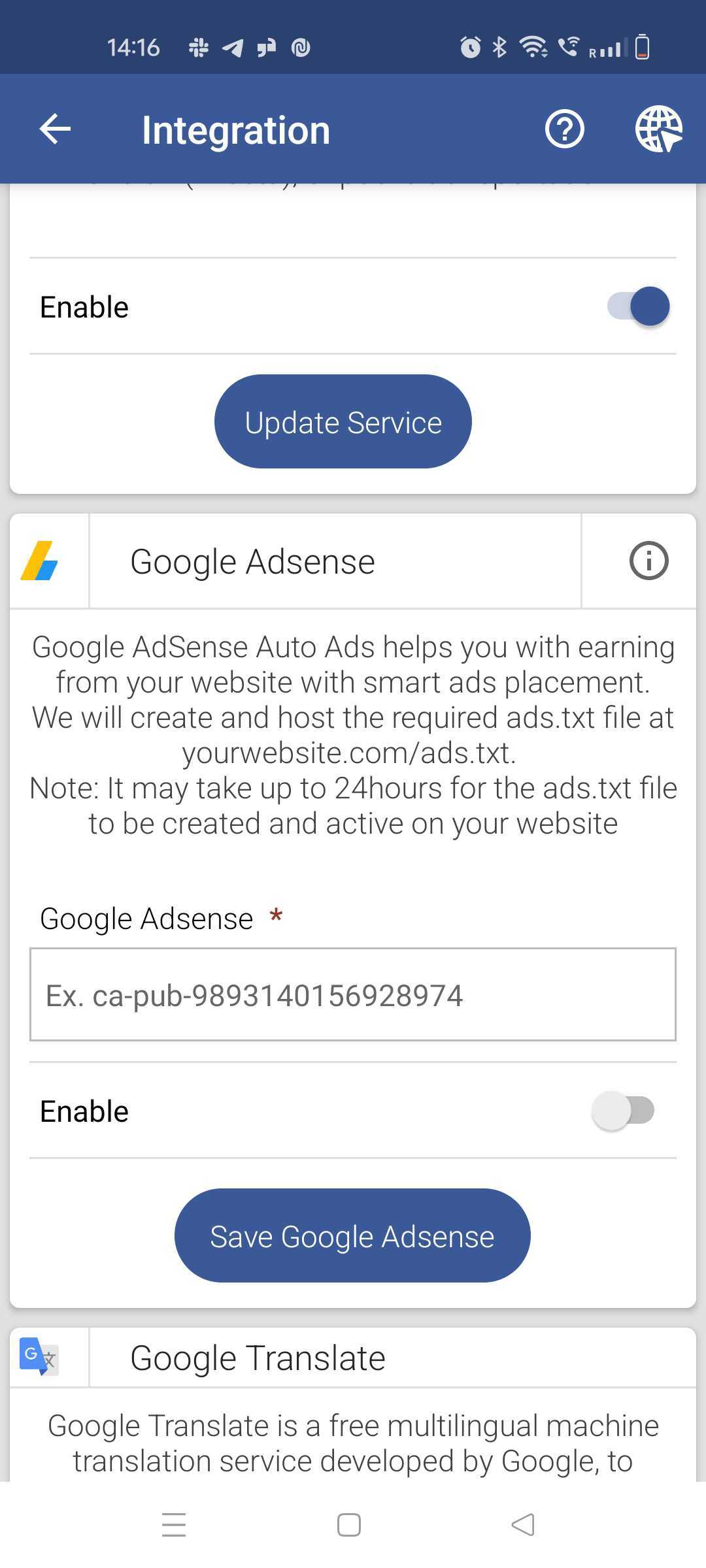
We will create and host the required ads.txt file at yourwebsite.com/ads.txt.
Note: It may take up to 24 hours for the ads.txt file to be created and active on your website.